Hela Dawasa
App Guide & Tutorial
A little help with your calendar, personal notes, languages and themes.
Opened this page from the app? You’re in the right place. You can return here from the information button ⓘ, then App Guide & Tutorial.
Updated 29 October 2026. These Android screenshots show the current calendar, holiday details, date picker, Settings and Information screens. Appearance follows your chosen theme and language; your installed version may differ.
01 · Find a date
A month at a glance.
- Open Hela Dawasa to see the calendar. Use the left and right arrows beside the month to move between months.
- Tap the month and year heading to open the date picker. Choose one of the three year buttons, then a month from the two-column grid. Scroll the sheet for more months. The title and Cancel action stay visible.
- When viewing a different month, tap Today in the top toolbar to return to the current month. The button is hidden while the current month is already open.
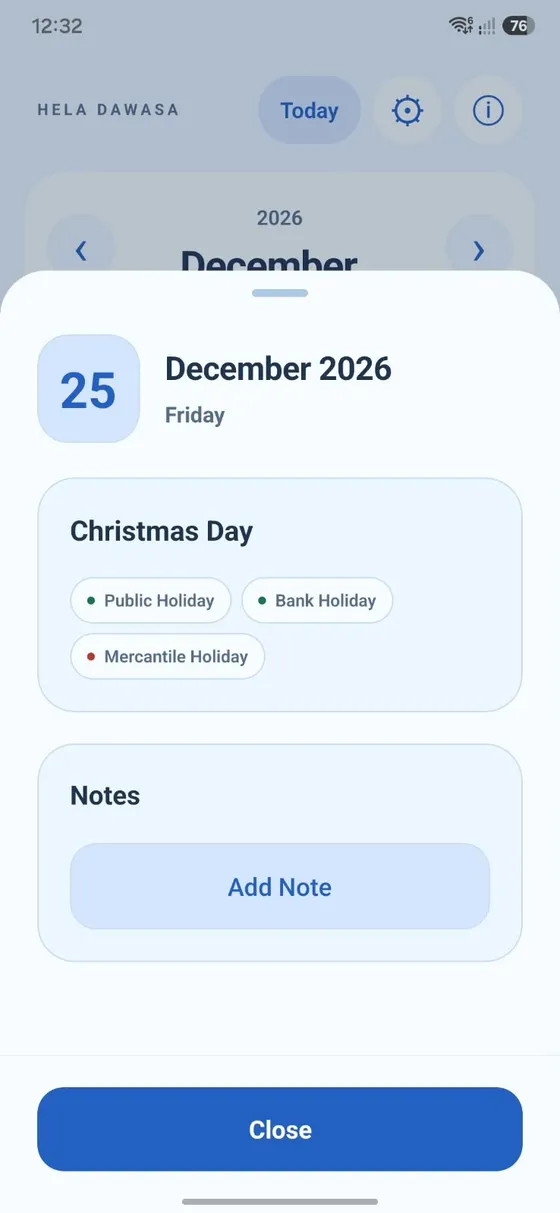
- Tap a date to open its holiday details and personal notes.
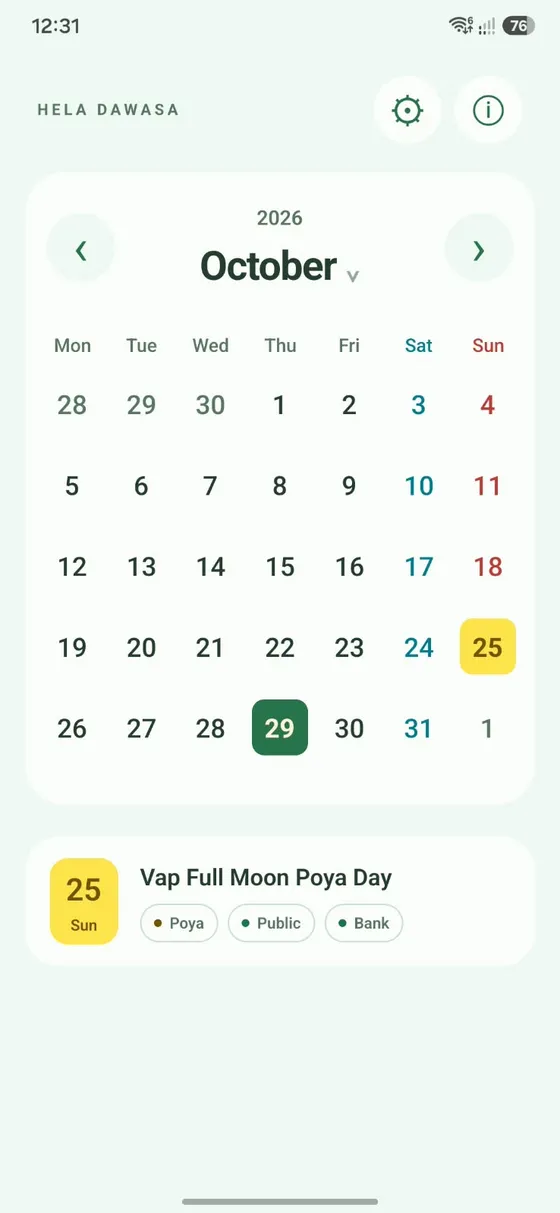
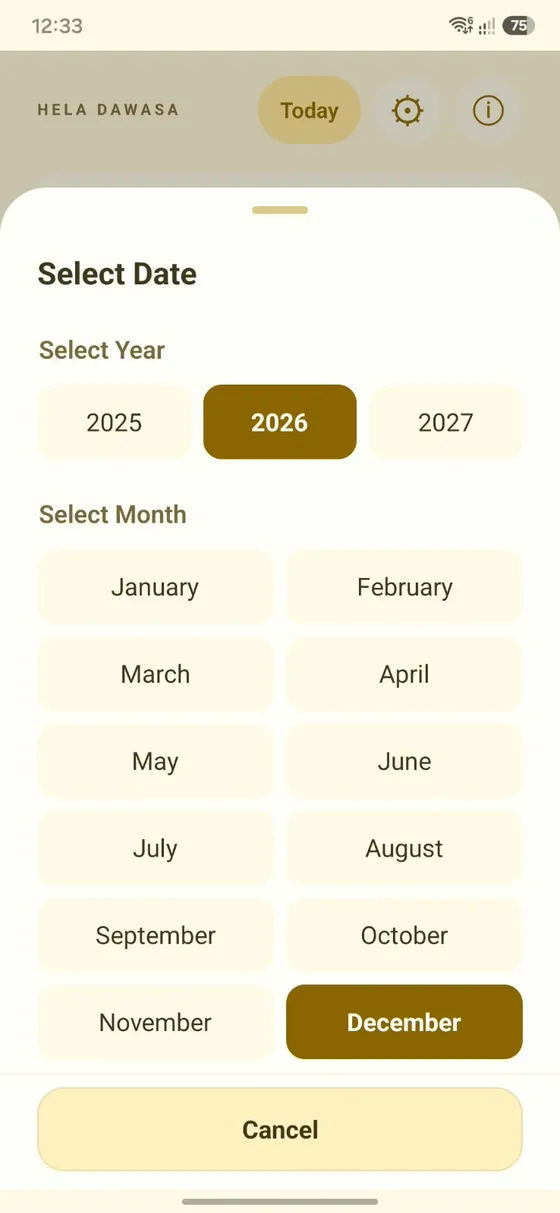
The year picker shows the previous, current and next year based on your device’s year. Use the month arrows to browse further. A calendar date can be visible even when holiday information for its year is not available.
02 · Understand holidays
The details behind a date.
Highlighted dates and the monthly holiday list help you find Sri Lankan holidays and Poya days. Tap a highlighted date or an entry in the holiday list to see its details.
Read the category labels for Public, Bank and Mercantile holidays. Poya days have their own highlight. If more than one holiday falls on a date, its details can show each entry.
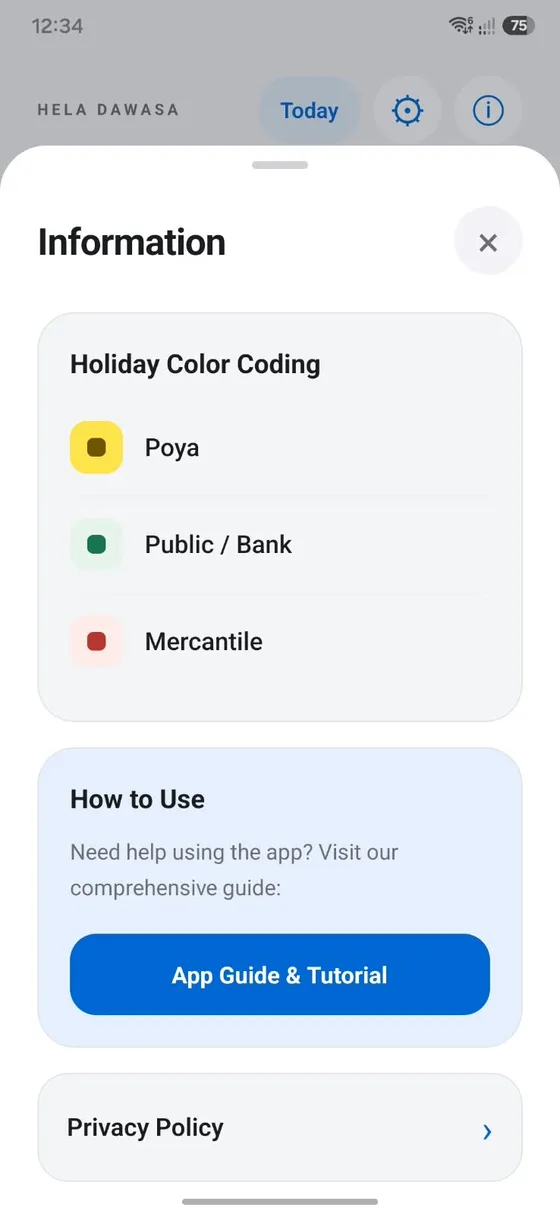
Poya days use yellow, Public / Bank holidays use soft green and Mercantile holidays use soft red. Today uses your theme’s accent colour. The category labels explain dates that have more than one holiday type.
Tap the information button ⓘ in the top toolbar to see the Holiday Color Coding guide.
03 · Keep a note
Remember the little things.
- Tap the date you want to remember.
- Under Notes, tap Add Note, enter your text, then tap Save.
- To edit a saved note, open the same date and tap the note text. Make your changes and tap Save, or choose Cancel to leave it unchanged.
- To remove a note, open it for editing, tap Delete and confirm. Deletion cannot be undone.
A short underline marks dates with saved notes. Saving returns to the note without a confirmation dialog. Notes are saved on your device and are not uploaded by the app. Keep a separate copy of anything important before clearing app data or uninstalling.
04 · Choose your language
A familiar language.
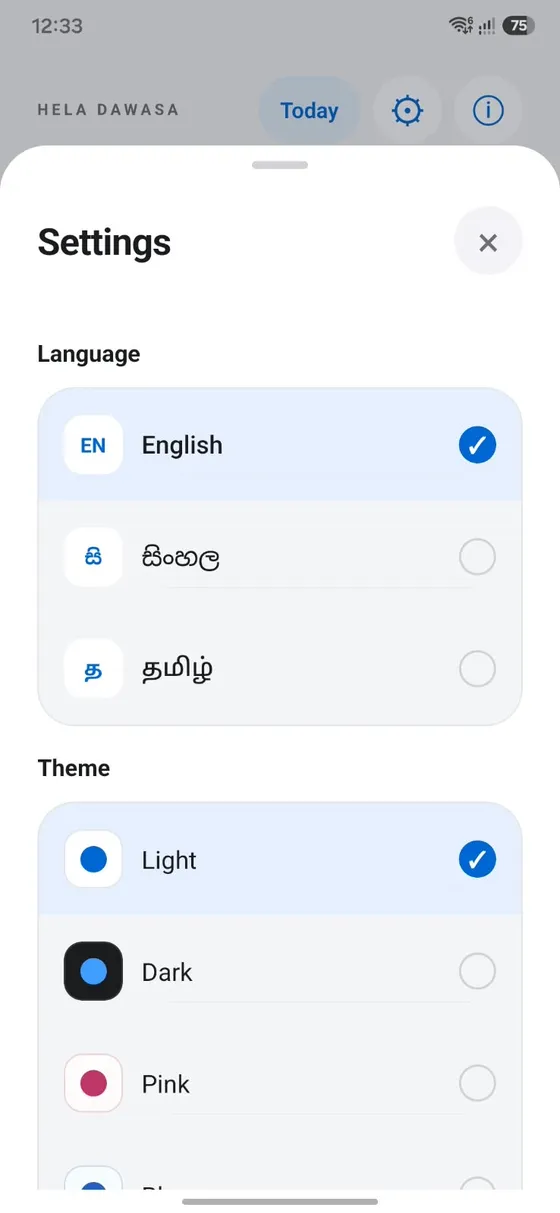
- Tap the settings button ⚙ in the top toolbar.
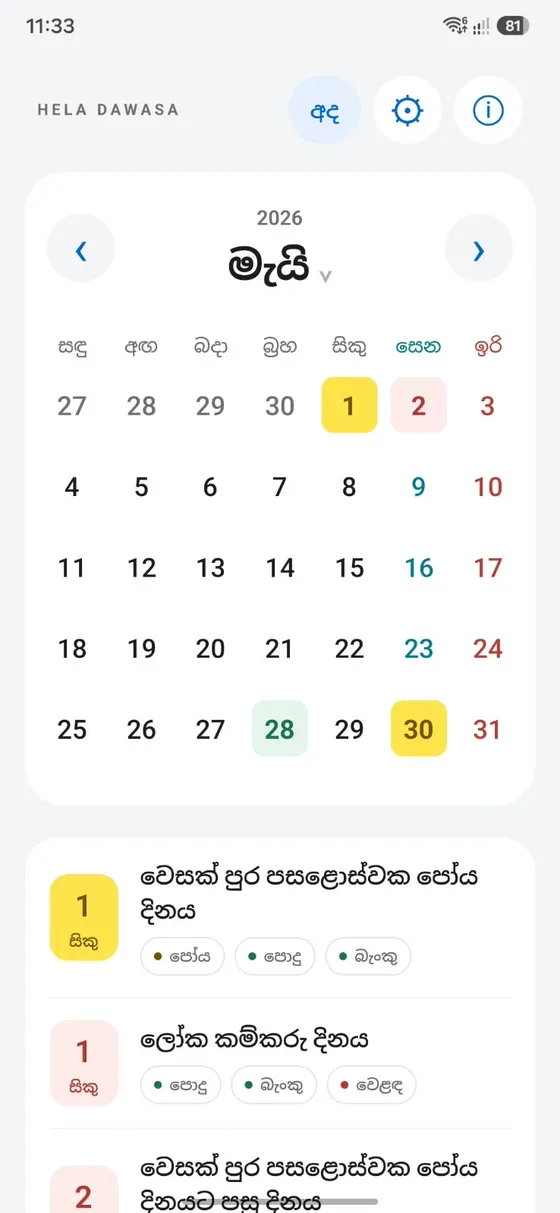
- Under Language, choose English, සිංහල or தமிழ்.
- Close settings to continue. Your selection is saved for the next time you open the app.
Calendar and holiday labels follow your selected language. This guide uses the English button names; the app shows their translated labels when you choose Sinhala or Tamil.
05 · Change the theme
Make it feel like yours.
- Open settings using the settings button ⚙.
- Under Theme, choose Light, Dark, Pink, Blue, Green or Yellow.
- Your choice applies in the app and stays saved when you close it.
The selected language and theme have a check mark. Scroll Settings to see all six themes, then tap the close button × to return to the calendar.
06 · Use it offline
Ready for an ordinary day.
Included holiday information and years already downloaded stay available offline. You can also keep personal date notes without an internet connection.
Connect to the internet to download holiday information for a year you have not saved or to receive corrections. The app checks automatically while it is open or when you return to it; there is no update button in settings.
If a year cannot load because you are offline or an update failed, reconnect and tap Try again when offered. A message saying a year has not been published means its holiday information is not available yet.
07 · Information
Colour meanings and help.
- Tap the information button ⓘ in the top toolbar.
- Read Holiday Color Coding for Poya, Public / Bank and Mercantile highlights.
- Under How to Use, tap App Guide & Tutorial to return to this guide. Open Privacy Policy to read how the app handles data.
- Scroll down for Contact & Feedback. Tap the email address to open your email app, or close Information using ×.
A little more help
Common questions.
Why can I see a month but no holiday information?
Calendar dates and holiday information are separate. Check the message below the calendar: the year may need a download, a connection may have failed, or its holiday information may not have been published. Missing information does not mean the year has no holidays.
Where is my saved note?
Open the date where you saved it. A note is attached to that date and stored on that device. It is not transferred automatically to another device.
Will my language and theme reset when I close the app?
No. Your selections are saved locally and used the next time you open the app.
How do I report a holiday correction?
Email info@helasoft.lk with the year, date, holiday name and what needs correcting. Include an official source if you have one.
We’re here to help.
Still have a question?
Tell us what happened, your device model and which language you use in the app. Please leave private note contents out of screenshots you send for support.
Email Hela Dawasa support